How it works
Your content in Rock. Your slides on every TV.
Rock Your Screens reads your ministry content from five content channels in your own Rock and shows it full screen on Apple TV. Here’s how the pieces fit together.
The structure
Five levels, all optional except the slides
The setup script creates five content channels in Rock, one for each level. Each level is a child of the one before it.
- MinistriesKids, Students, Lobby
- RoomsNursery, Preschool, Elementary
- SeriesGame Changer
- WeeksEach with a Sunday start date
- SlidesImages and videos, in order
- Use the levels you need. Ministries that don’t use rooms or series can skip those levels.
- Rename them. Call “Rooms” “Age Groups” in Rock, and the Apple TV shows your names.
- Single choices are skipped. If a level has only one option, the Apple TV goes straight past it, so teachers press fewer buttons.
- One app for every room. Kids, students, adults and lobby screens all from one app.
On the Apple TV
The teacher’s Sunday
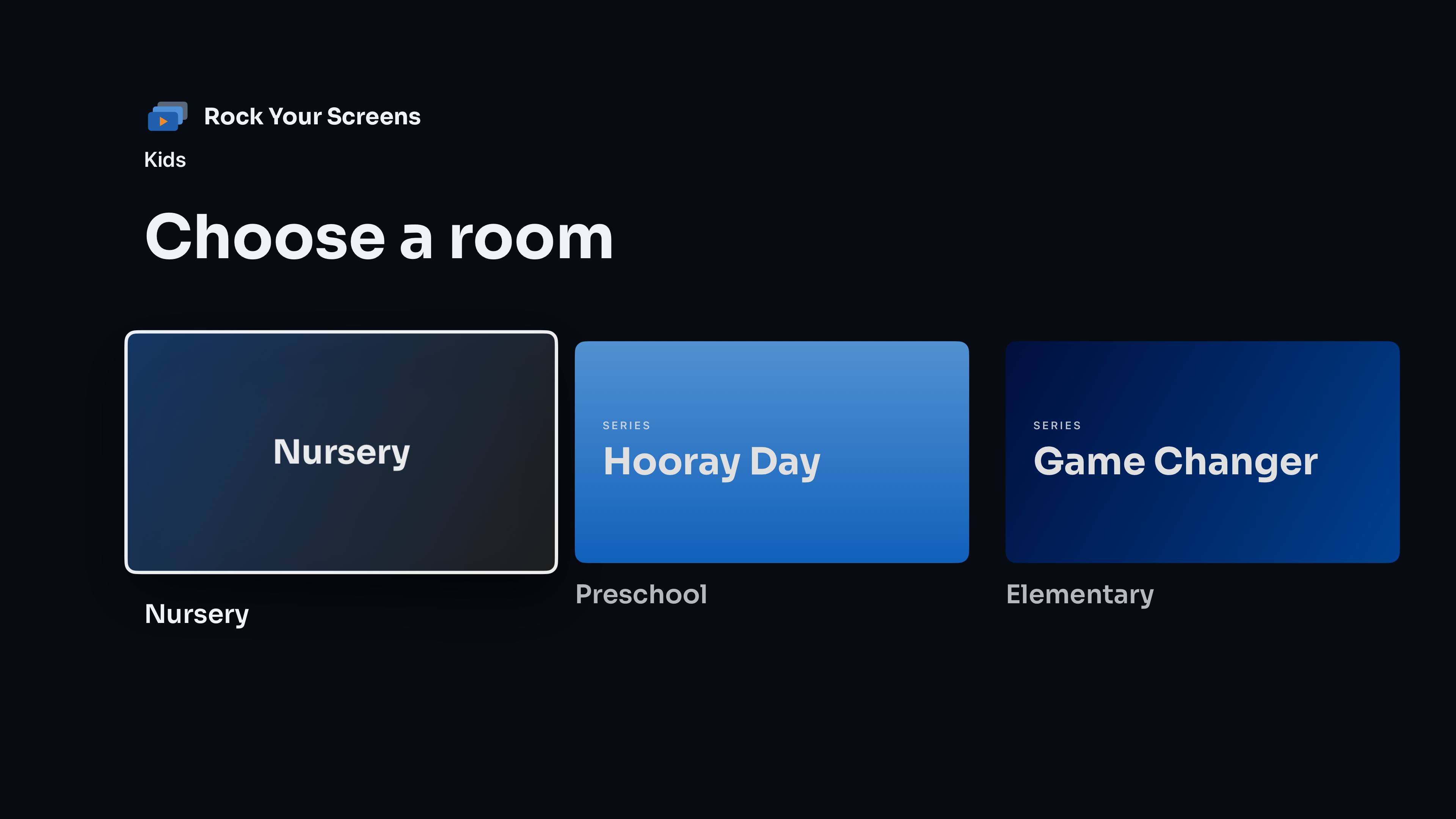
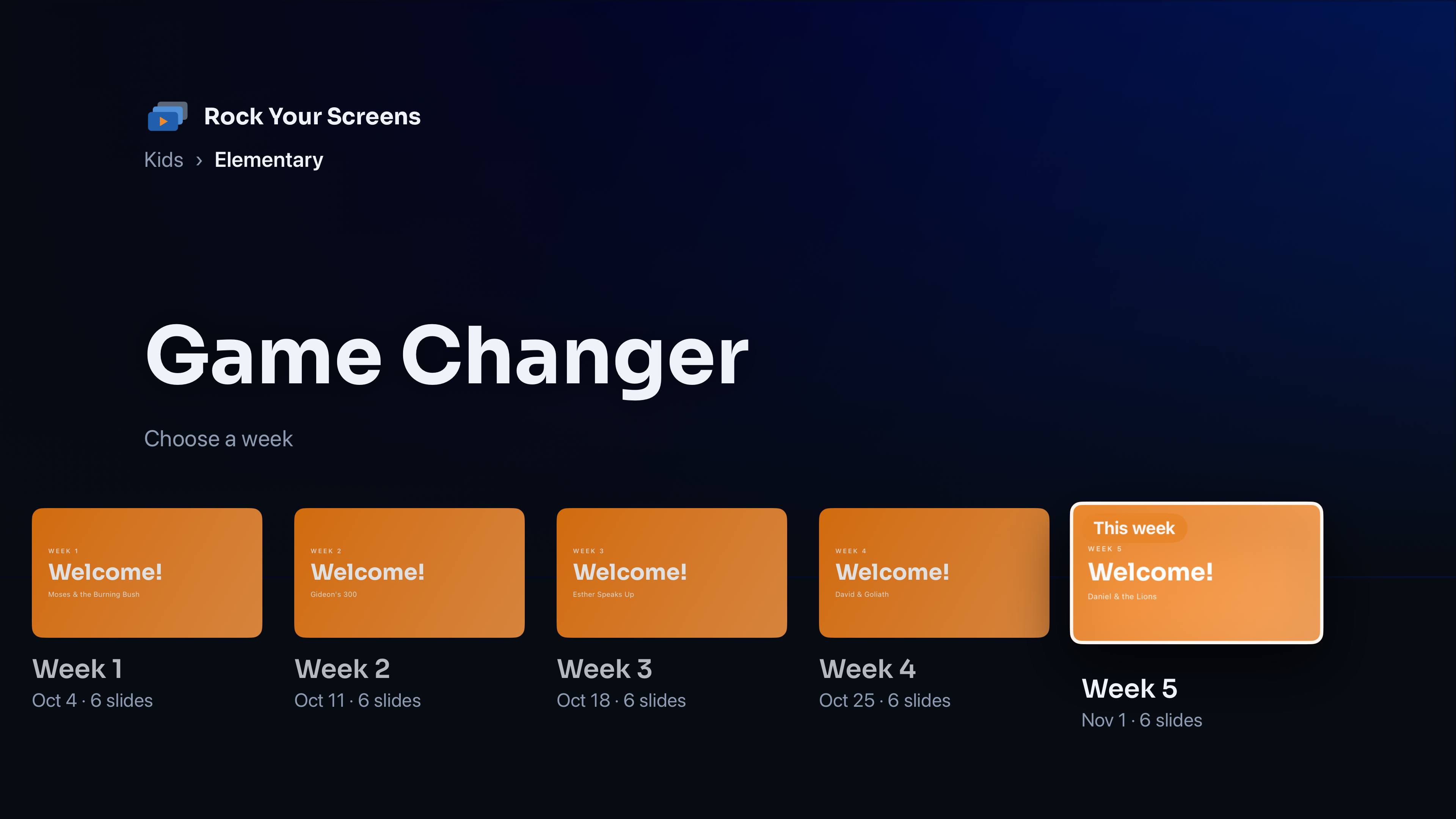
- Pick the ministry, then the room, then the week.
- The week whose Start Date is nearest is highlighted as This week, ready to go.
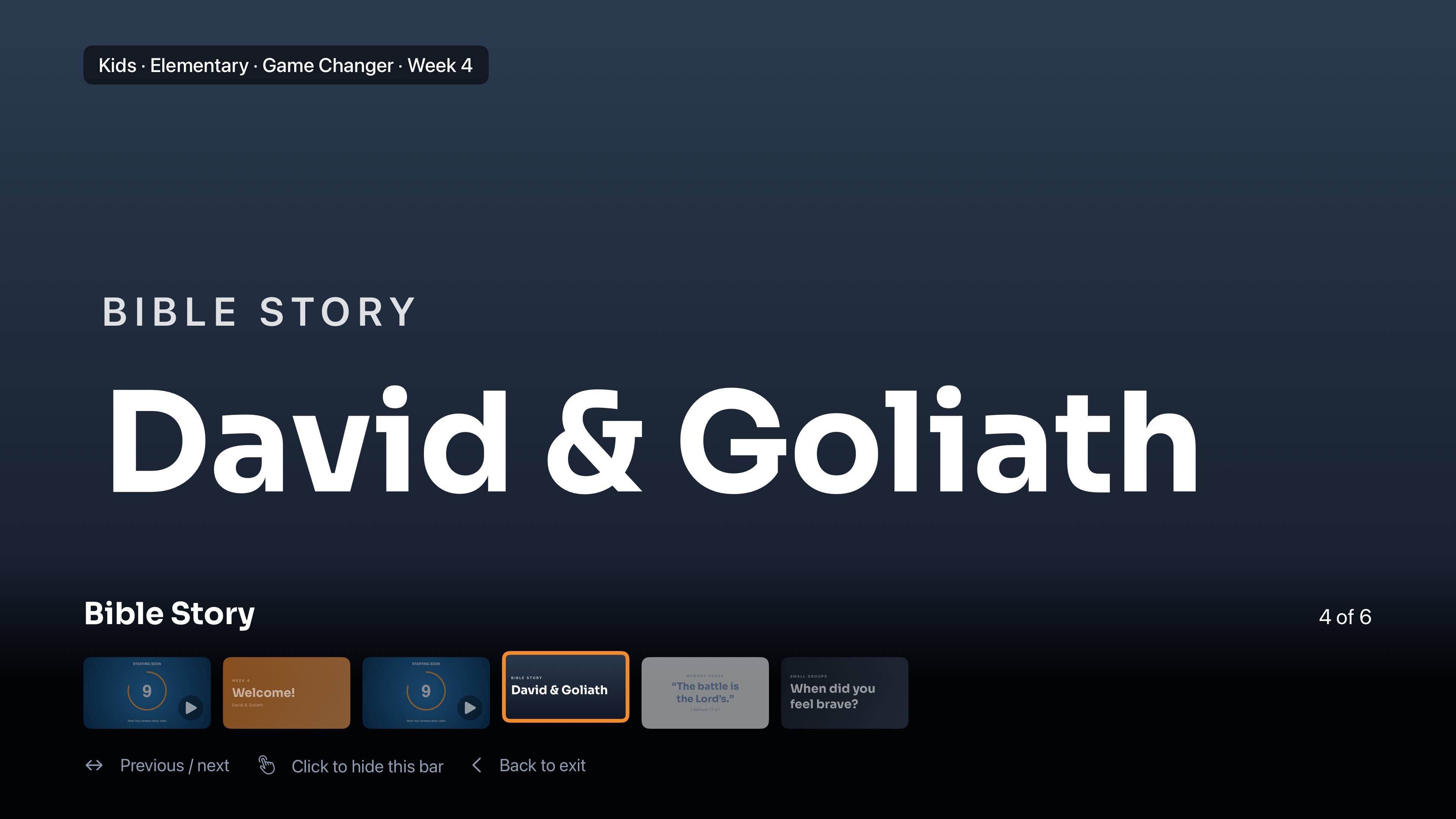
- The lesson plays full screen. Swipe to change slides, press Play for videos.
- Press Back when class is over.
The remote
Four controls to learn
- Left / RightPrevious or next slide. Swipe or press.
- Play/PausePlay or pause a video.
- ClickShow or hide the slide bar, with the filmstrip and “4 of 6”.
- BackLeave the lesson.
The slide bar hides itself after a few seconds, and stays up while a video is waiting for Play. The screen stays on while slides are showing.
Playback settings
Nothing starts before the room is ready
Each Apple TV has its own Settings, so a classroom and a lobby screen can behave differently.
Videos wait for Play
Videos show “Press Play to start” until the teacher is ready. Turn on autoplay if you’d rather they start on their own.
Lobby and welcome screens
Image slides advance on a timer, videos advance when they finish, and the whole deck loops. With it off, the deck stops at the last slide.
Videos never loop
A video plays once. Left and right change slides; they never scrub through a video by accident.
Load Screens
A whole series, loaded from one page in Rock
Load Screens is a page you add to your Rock. Your team picks the ministry, room and series, adds weeks, drops each week’s files into its lane and clicks Publish. It creates the weeks and slides in the RYS channels and links them in order.
Files it accepts
- JPG / PNG: one slide each.
- MP4: one video slide each, uploaded in 50 MB parts. There’s no size limit.
- PDF: one slide per page. Export PowerPoint, Keynote, Canva or Google Slides decks as PDF first.
- ZIP: a curriculum download is unpacked into its images, videos and PDFs, in file-name order.
Publishing is safe to retry
- Weeks step by 7 days, and titles default to the date. You can edit them.
- Drag tiles to reorder them or move them between weeks.
- If anything fails, that week’s new items are removed and the error is shown. Uploaded files are kept, so publishing again is quick.
- Use Add more slides to append to a week that’s already published.
Media hosting
Everything stays in accounts your church owns
Rock Your Screens has no servers and never sees your content. The Apple TV loads everything directly from your church.
Stored in your Rock
Slide images are saved with a Rock Your Screens Media file type that is stored on disk and viewable without signing in, so the Apple TV can load them.
Stored in your Cloudflare R2
Videos go to an R2 bucket in your church’s own Cloudflare account, through a small Worker you paste in. Load Screens uploads to it; the Apple TVs play from it. Your domain does not need to be on Cloudflare.
The first 10 GB of storage is free each month, then about $0.015 per GB. Video downloads to your Apple TVs are always free.
Connecting an Apple TV
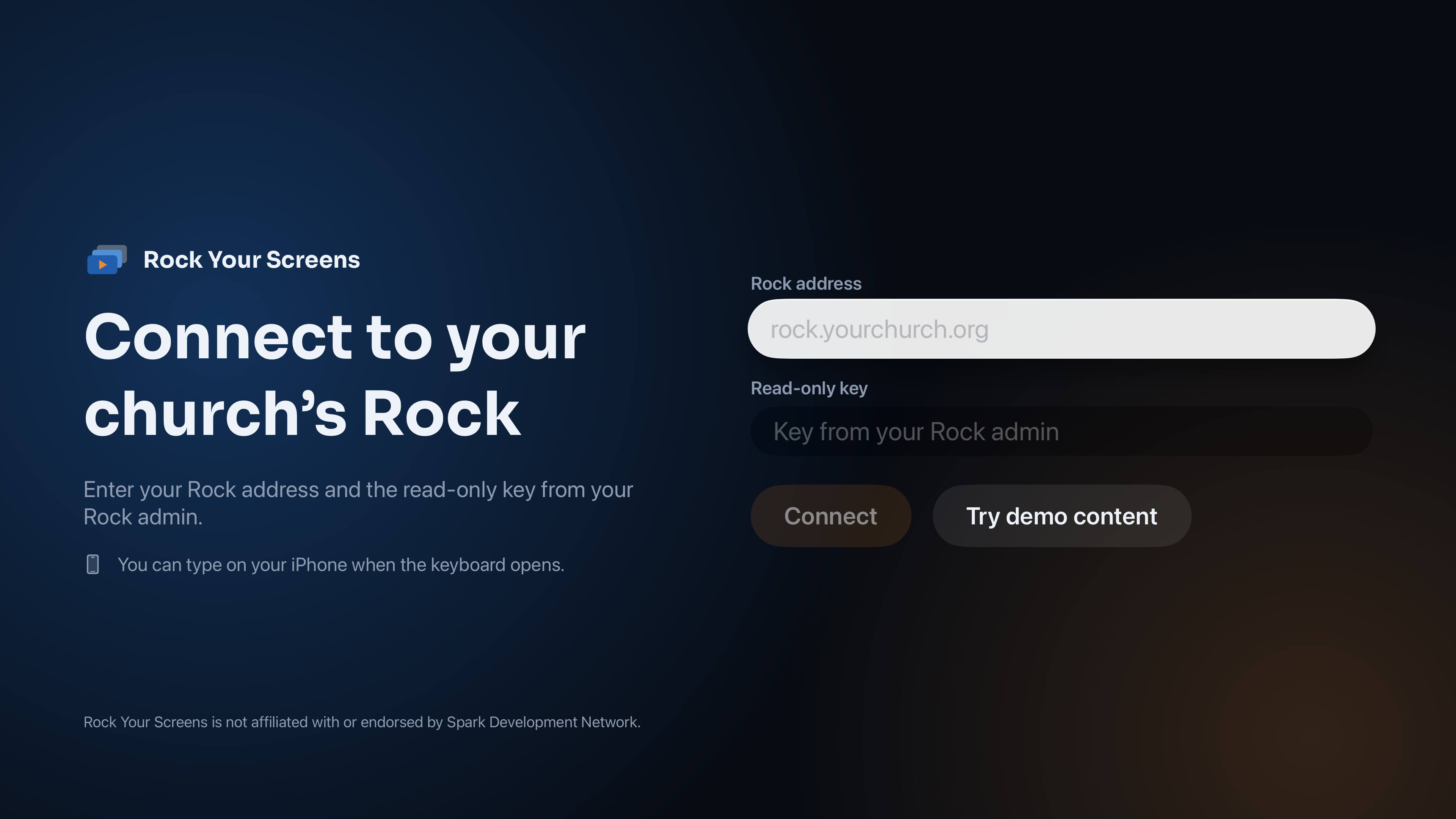
A Rock address and a read-only key
Enter your Rock address and the read-only key your Rock administrator created. You can type on an iPhone when the keyboard appears. The key can read content but can’t change anything, and it lives only on your Apple TVs.
No Rock server yet? Choose Try demo content to see every feature right away.